
Configure music
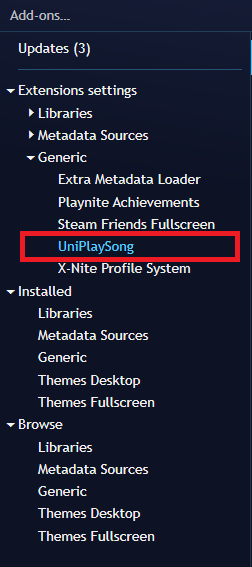
In Playnite Desktop, open Menu > UniPlaySong Settings. Music integration is optional; if used, follow the recommended setup in the next images.
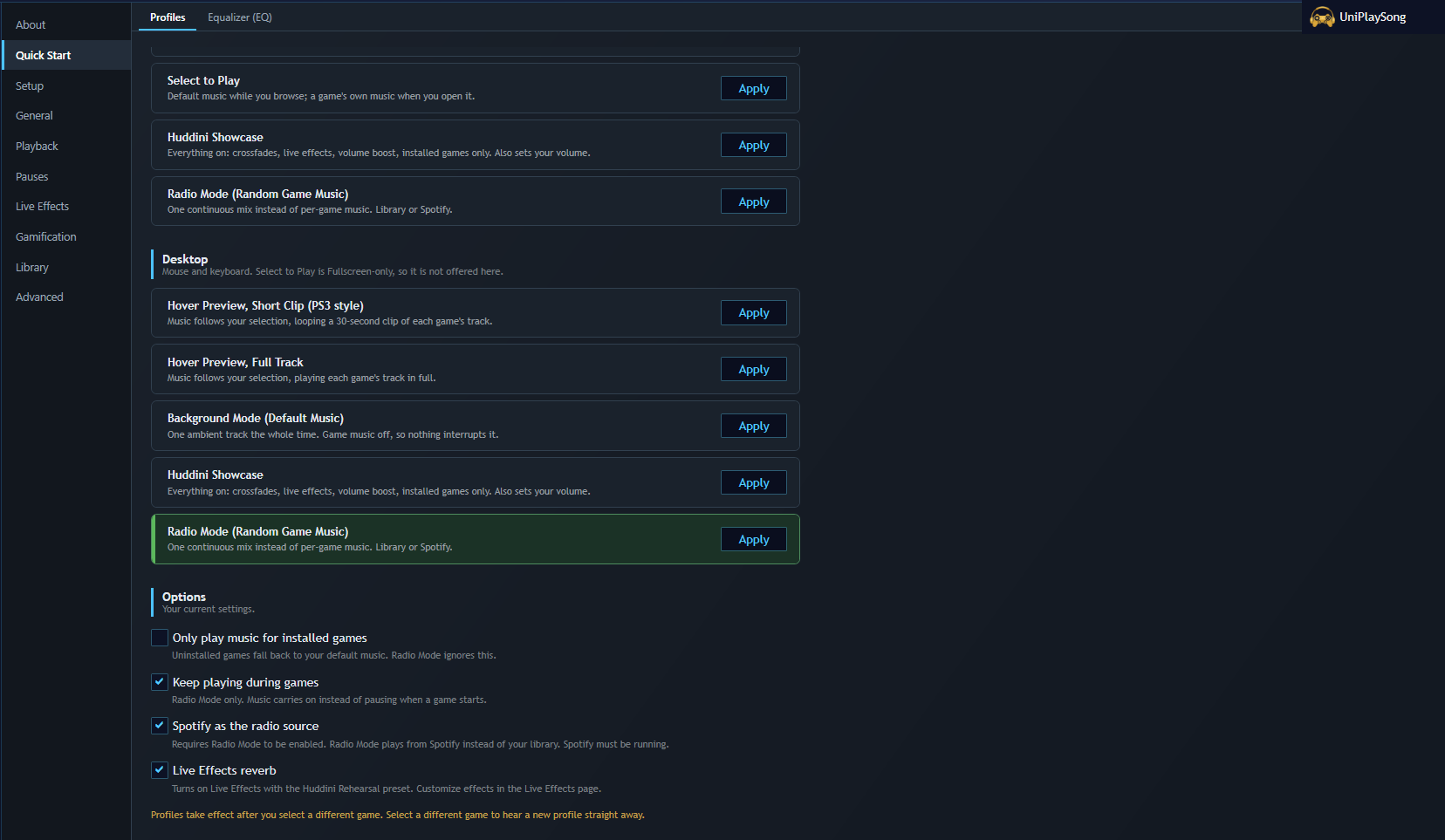
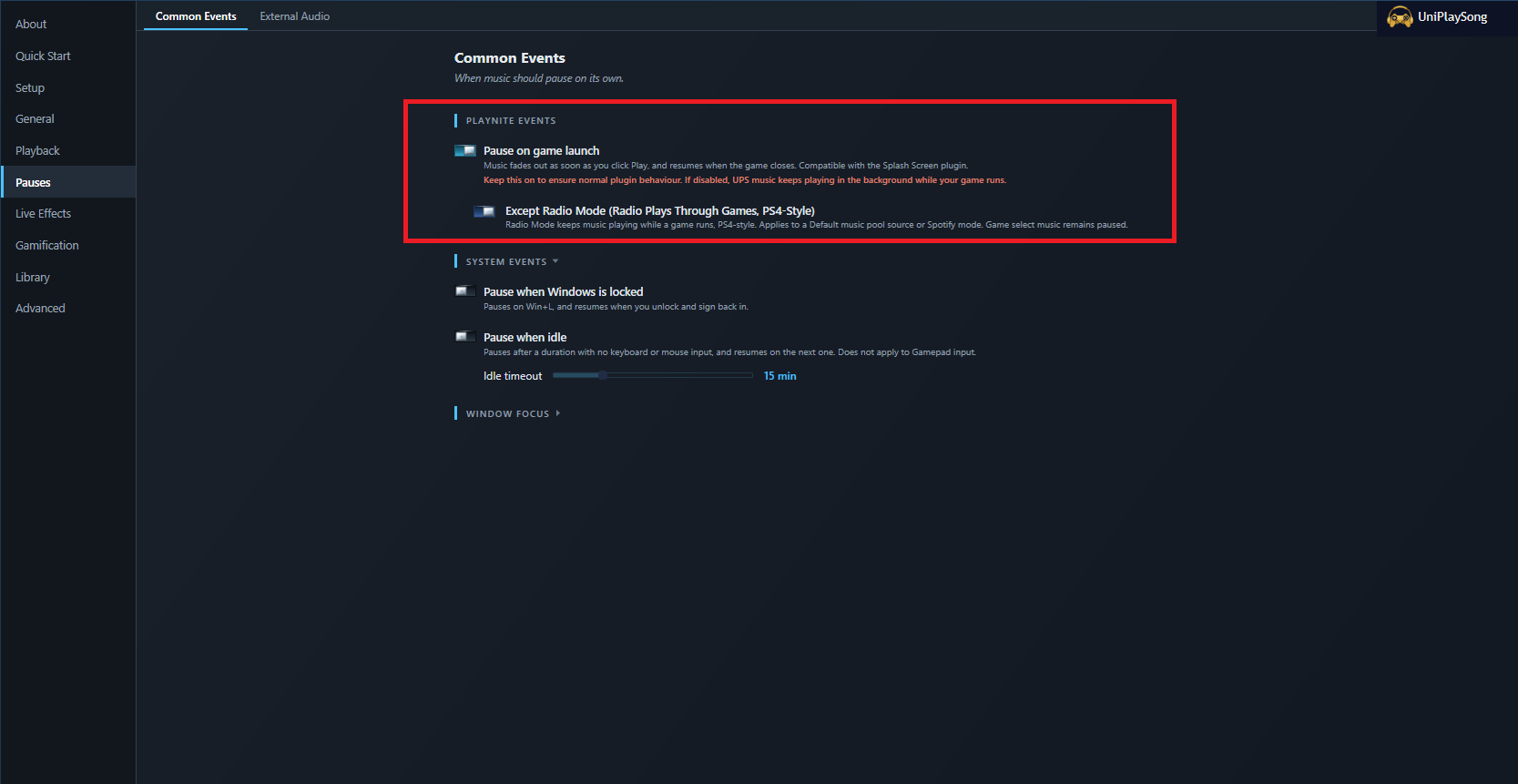
Under Quick Start > Profiles, apply Radio Mode (Random Game Music) and enable Spotify as the radio source. Keep Spotify open and ready to play. This provides continuous music instead of changing tracks for each selected game. Also enable Keep playing during games.
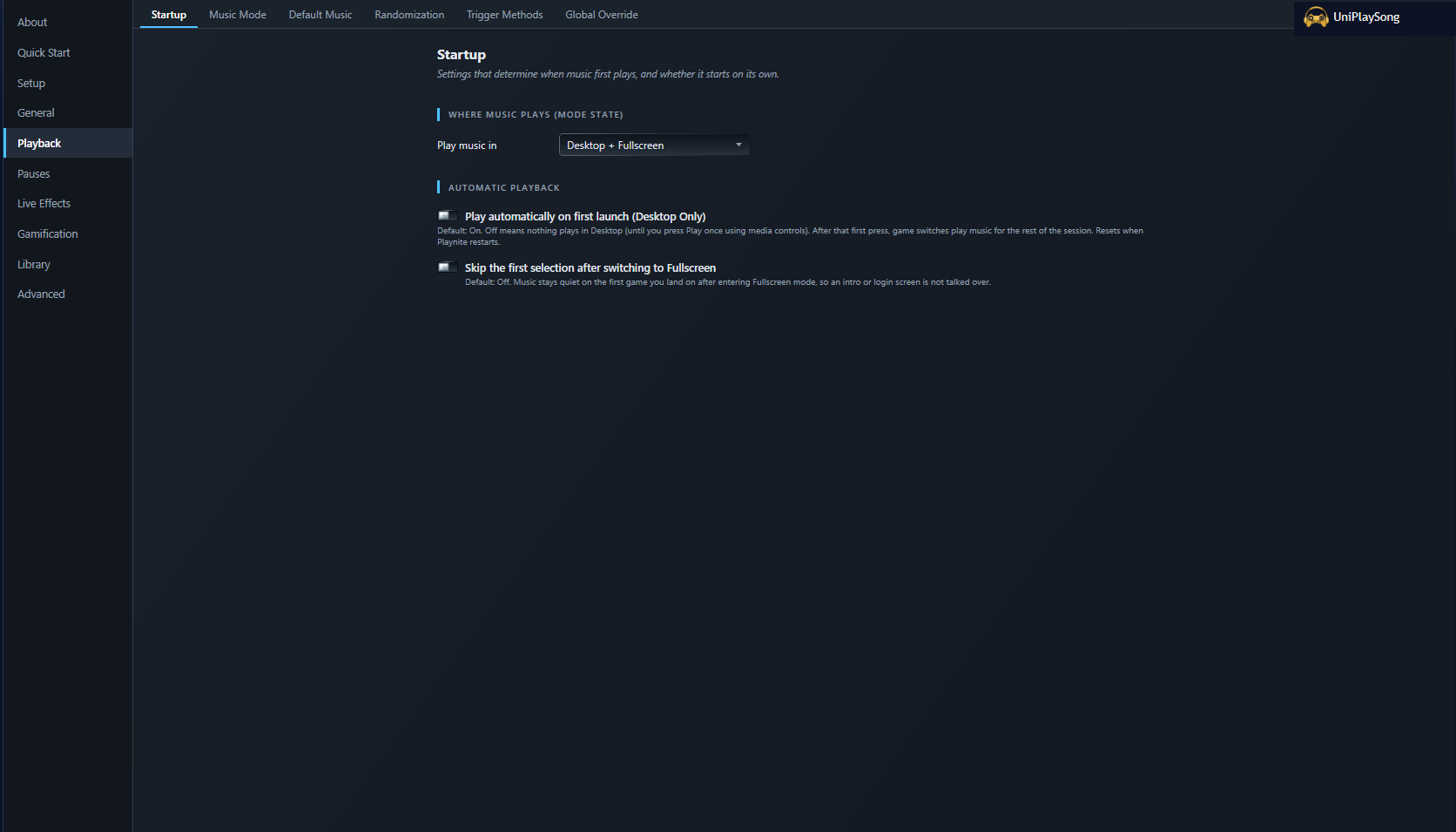
Under Playback > Startup, choose Play music in: Desktop + Fullscreen. Keep the automatic-start and skip-first-selection options as shown.
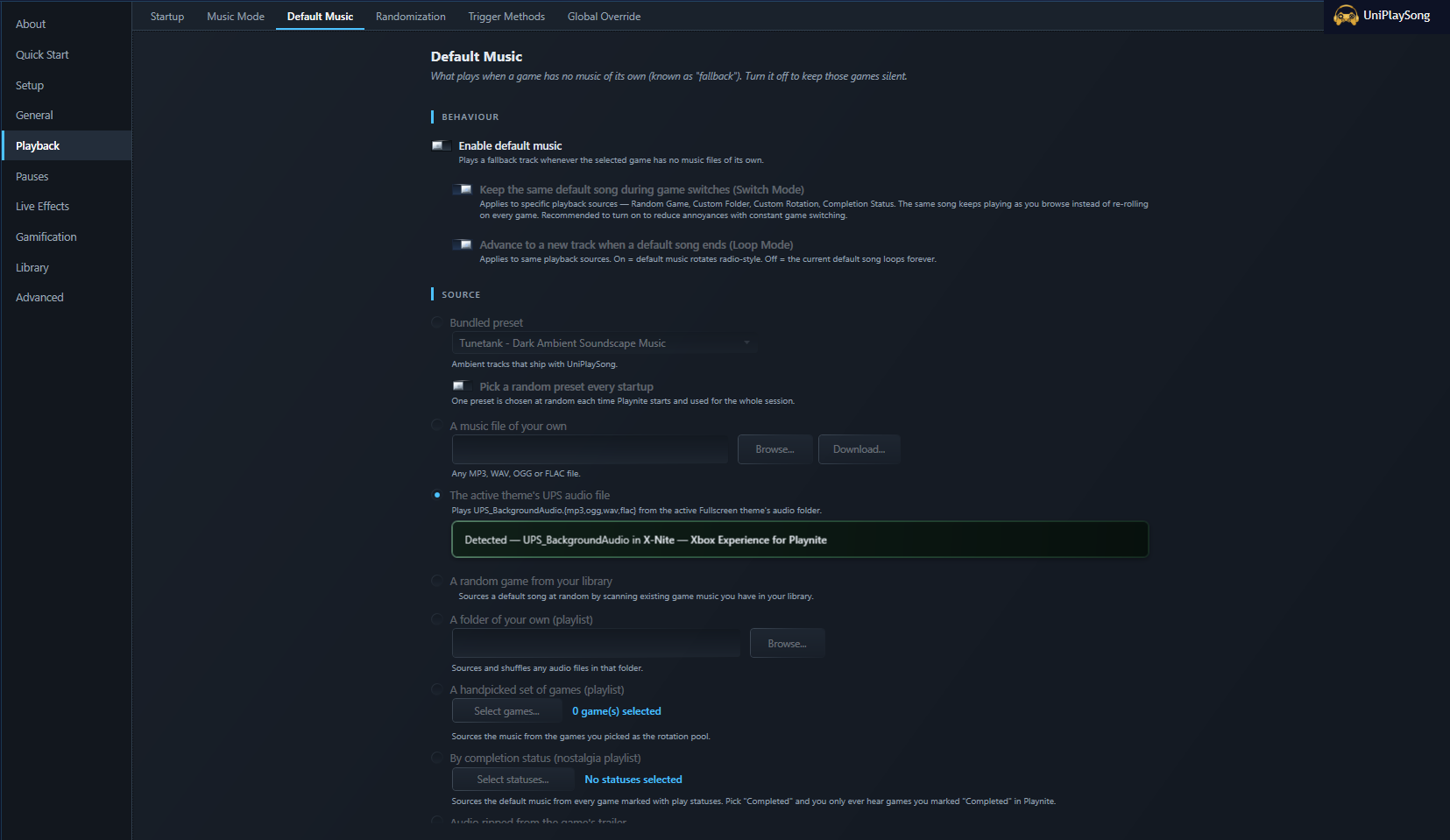
Playback > Default Music is separate. The screenshot selects the theme’s UPS audio source, but Enable default music is off. Leave it off for the recommended Spotify radio setup; this mode does not require the theme audio.
Under Pauses > Common Events, keep Pause on game launch enabled and enable Except Radio Mode (Radio Plays Through Games, PS4-Style). This exception lets Spotify radio continue during games. Save and test a game launch.